Kiro
Connect Kiro to Bizora by adding a remote MCP server entry to the Kiro User Config.
Setup
- In Kiro, open the MCP servers panel and open the User Config
mcp.jsonfile. - Add the Bizora server:
{
"mcpServers": {
  "bizora-tax": {
    "url": "https://mcp.api-bizora.ai/mcp",
    "autoApprove": []
  }
}
}
- Save the file.
- In Kiro, open the MCP servers panel and connect
bizora-tax. - Complete the browser sign-in when Kiro asks for authorization. Kiro can show Authenticate in the MCP servers panel or in an in-app notification.
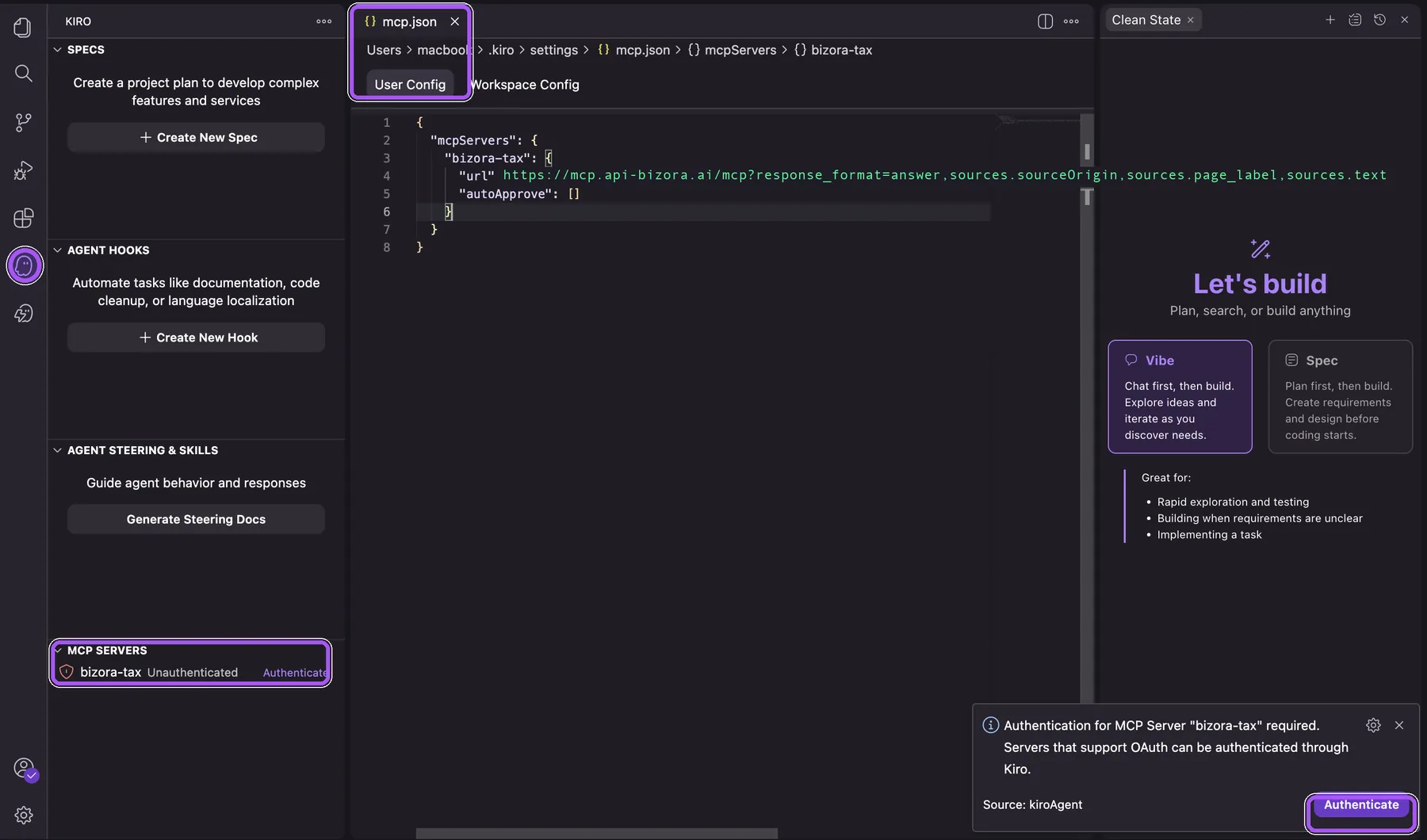
- Ask Kiro to use Bizora for a tax research question.
What Kiro Receives
- Tool access through Bizora MCP at https://mcp.api-bizora.ai/mcp.
- OAuth discovery through https://mcp.api-bizora.ai/.well-known/oauth-protected-resource.
- Compact source identifiers for citations in the default
minimalresponse:sources.s3_file_pathandsources.node_id. - The default
tax-researchtool, backed bytax_research_fast_research.
For tool selectors, response formats, ZDR, and long-running request behavior, use the MCP Server page as the source of truth.