Claude
Use the built-in connector to ask tax research questions directly in Claude. It brings Bizora's research workflow into your Claude conversations, so you can ask questions and receive answers grounded in primary tax authority.
Connect Bizora to Claude
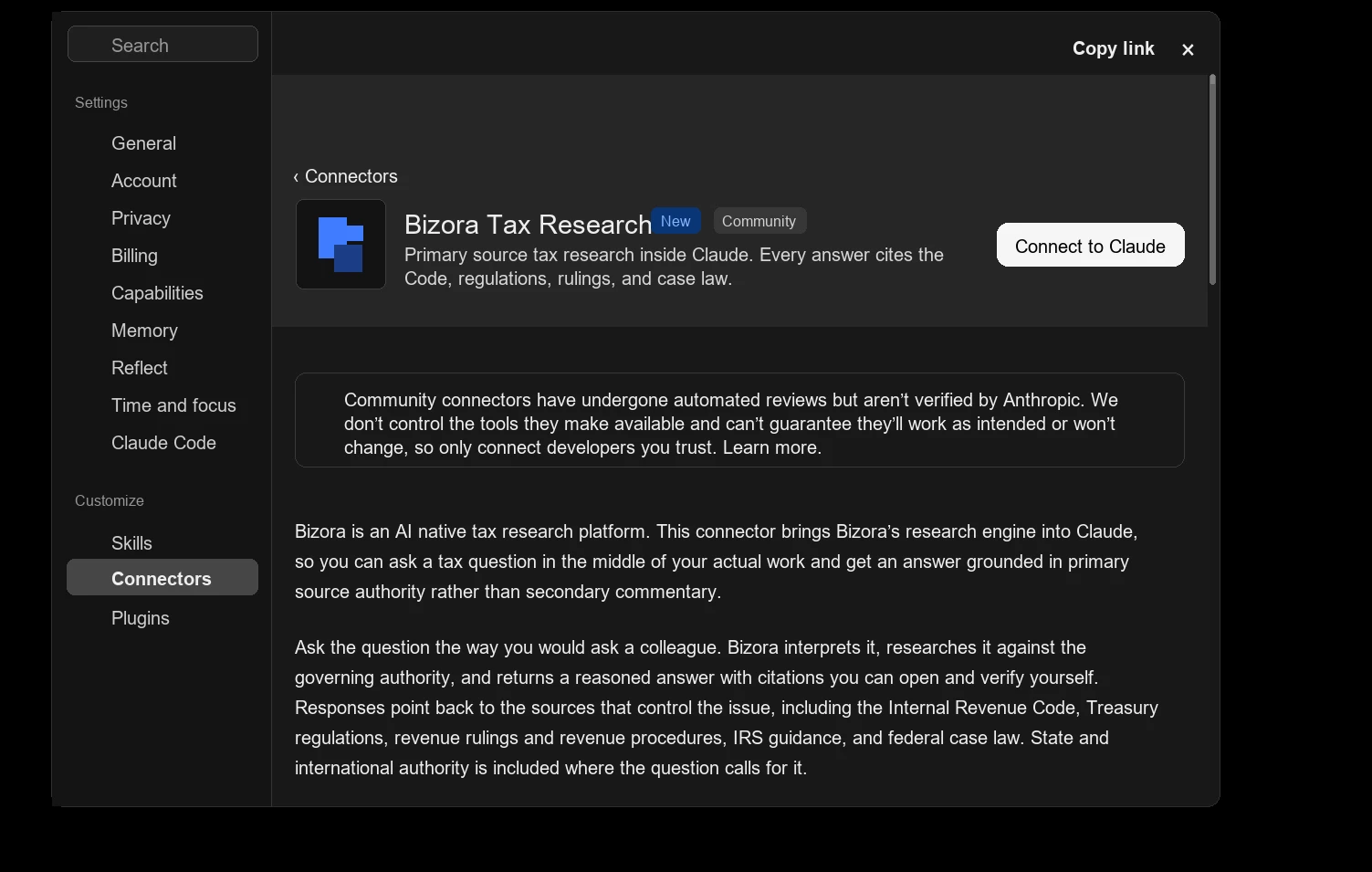
You can connect Bizora from Claude's connector directory:
- Open Claude and go to Settings.
- Under Customize, open Connectors.
- Select Discover.
- Search for
Bizora Tax Research. - Open the Bizora Tax Research connector.
- Choose Connect to Claude.
- Complete the browser sign-in when Claude asks for authorization.
- Start a new Claude chat and ask a tax research question.
Use Bizora in Claude
After the connector is installed, start a new Claude chat and ask a tax research question. Claude can use Bizora Tax Research to research the issue and return an answer with citations you can review.
For pricing by research or ask mode, see the Pricing page.
Advanced Setup
Use the Custom Connector page when you need more control over MCP configuration, such as selecting specific research modes. For most users, the built-in connector is the recommended setup.